Can You Schedule Instagram Posts? Yes — Here's How (2026 Guide)

Yes — you can schedule Instagram posts, and you have three main ways to do it in 2026: Instagram's built-in scheduler inside the app, Meta Business Suite on desktop, and a dedicated tool like Send DM. Each one publishes your content automatically at the time you choose, so you don't have to be online when it goes live. This guide walks through every method for how to schedule posts for Instagram, the honest limits of Instagram's native tools, and how to pick an Instagram post scheduler that auto-publishes by itself.
Can You Schedule Posts on Instagram? (Quick Answer)
Yes. Instagram lets you schedule feed posts, carousels, and Reels directly in the app, and you can also schedule from a desktop using Meta Business Suite. Native scheduling currently supports up to 25 posts per day and up to 75 days ahead, which has been the documented limit since the feature rolled out to all professional accounts.
But there are real gaps. You can't schedule Stories inside the Instagram app, you can't edit a post once it's scheduled (you have to delete it and start over), there's no content calendar or media library, and analytics are thin. A purpose-built Instagram post scheduler like Send DM removes those limits and adds true auto-publish plus comment-to-DM automation in the same place.
How to Schedule Instagram Posts Step by Step (with Send DM)
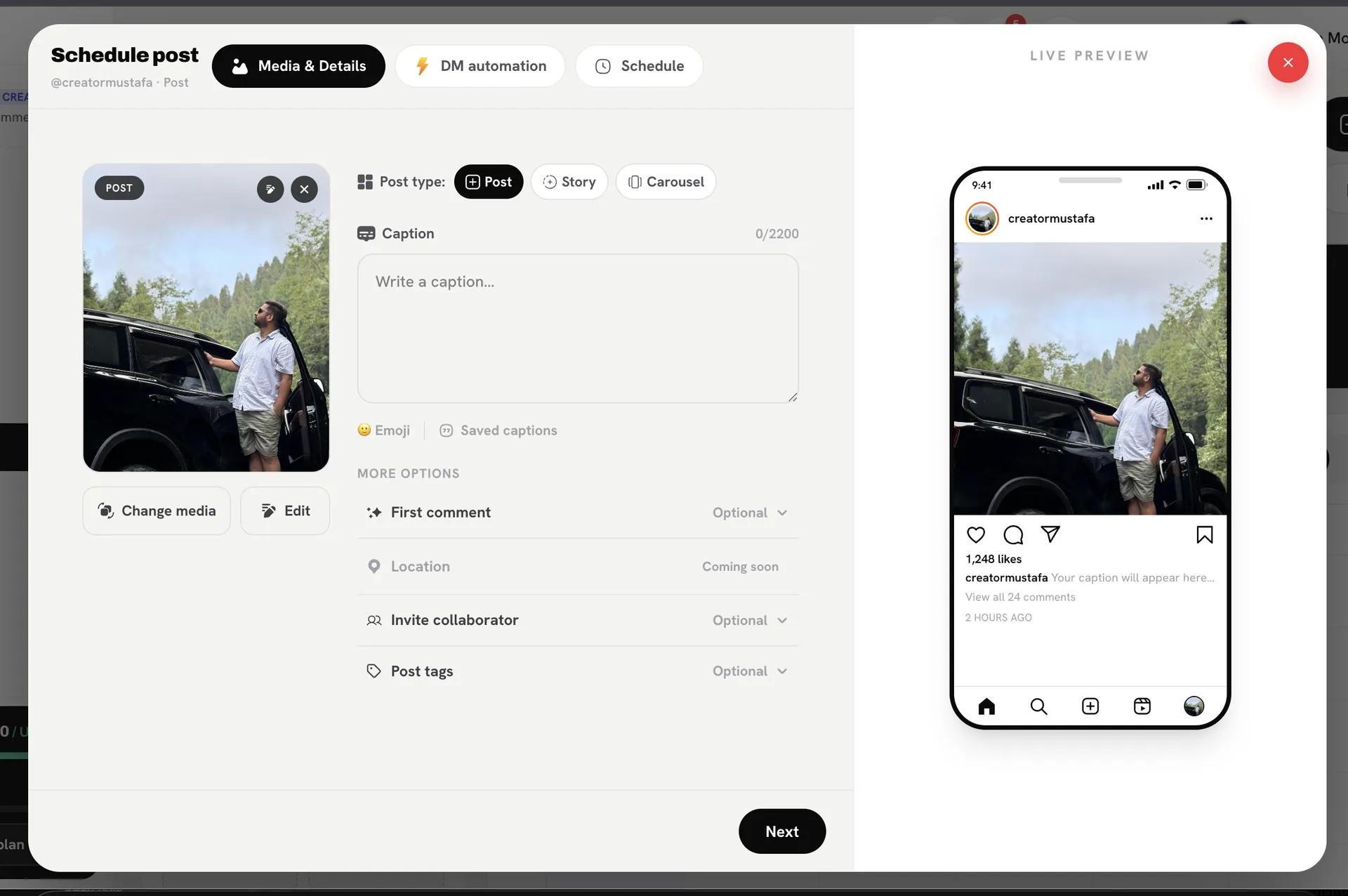
Send DM schedules posts and Reels that auto-publish through Instagram's official content publishing API — there's no push notification to tap, the post simply goes live on its own. Here's the flow:
- Connect your Instagram account. Send DM uses Instagram's own OAuth (the Instagram API with Instagram Login), so you log in directly with Instagram — no Facebook Page required. Your account must be an Instagram professional account (Business or Creator), which is Meta's requirement for every scheduler that publishes via the API.
- Open the composer and pick your content type: single image, carousel (a mix of images and videos), Reel, or Story.
- Upload your media. On paid plans, use the built-in editor to crop images or trim video right inside the composer.
- Write your caption and add hashtags. For Reels, set your cover, share-to-feed toggle, or trial reels if you want them (these Reel settings are paid features).
- Attach a comment-to-DM automation in the same composer if you want one. It's created in a pending state and arms itself automatically — bound to the new post — the moment that post publishes.
- Pick your date and time. You can schedule up to 90 days ahead. Times are interpreted in your own local timezone, which is set automatically at signup, so you schedule in your local time.
- Hit schedule — or save it as a draft to finish later.
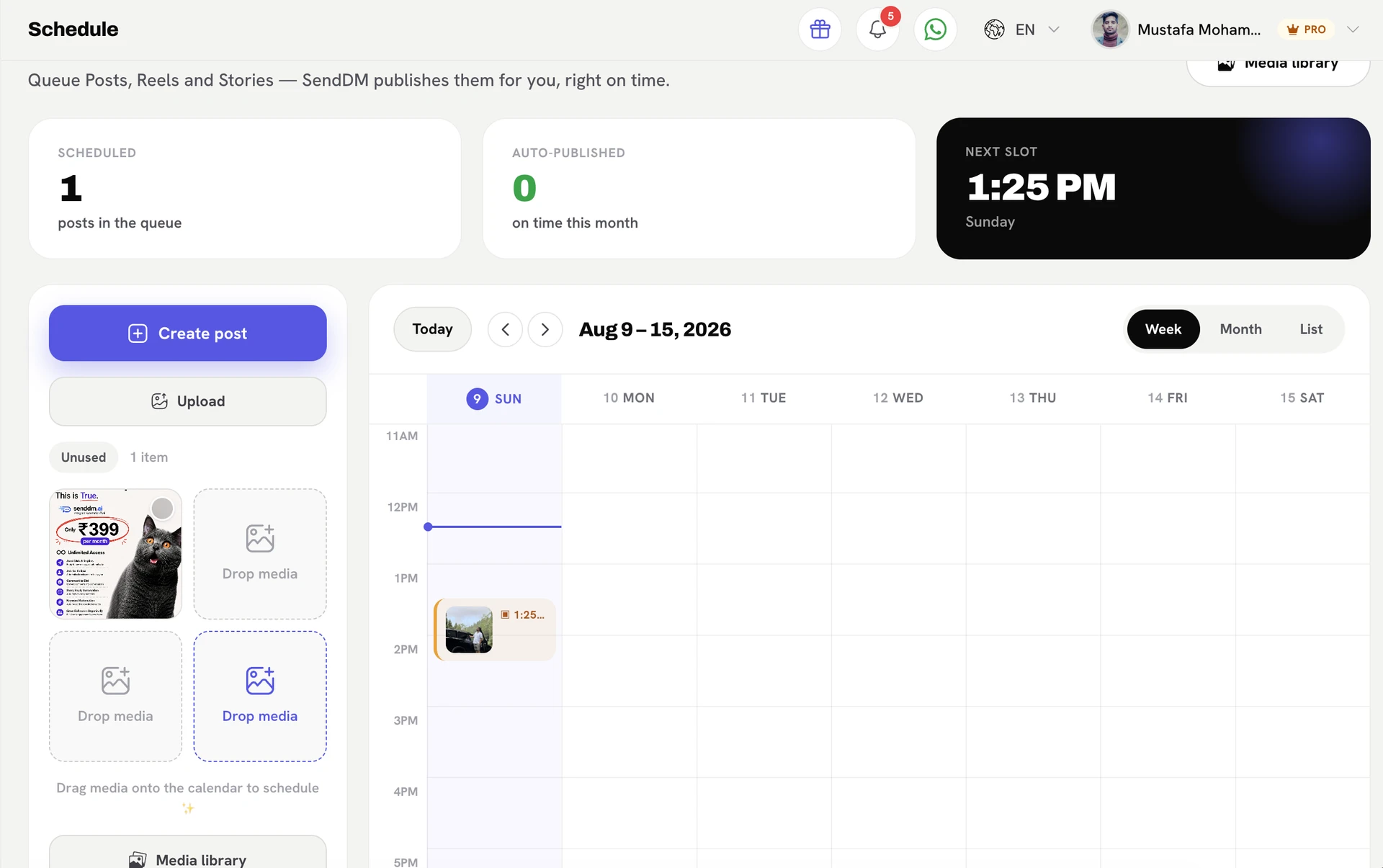
Your post lands on the content calendar. At 9 AM (or whenever you set it), it publishes by itself — and its comment-to-DM automation is already active on it. Once you've got how to schedule posts on Instagram handled, the next lever is timing — we cover the best time to post on Instagram in a separate guide.
Attach a comment-to-DM automation to every product or lead-gen post before you schedule it. The moment the post goes live, the automation is already armed — so early commenters get an instant DM while your engagement window is at its hottest.
How to Schedule Instagram Posts on Desktop
You have two solid desktop options in 2026.
Meta Business Suite (free)
Go to business.facebook.com, click Create post (or use the dropdown for a Reel or Story), select your linked Instagram account, add your media and caption, then click Schedule instead of Publish and choose a date and time. Meta Business Suite requires your Instagram account to be connected to a Facebook Page. It can schedule feed posts, carousels, Reels, and Stories — but scheduled Stories strip interactive stickers like polls and question boxes.
Send DM (desktop dashboard)
Log in at senddm.ai, open the composer, upload your media, and schedule. You get a full content calendar view, a media library, and — on paid plans — the built-in crop and trim editor. No Facebook Page needed. This is the better route if you want to see your whole month at a glance and attach DM automations at the same time.
How to Schedule Instagram Posts on the Mobile App
Two ways here as well.
Instagram's native in-app scheduler
Tap the + icon, pick your photo, video, carousel, or Reel, then add your caption and tags. On the final screen, tap Advanced settings (iOS) or More options (Android). Toggle on Schedule this post, pick a date and time up to 75 days out, and confirm. To review or reschedule, open your profile menu and tap Scheduled content. The in-app scheduler covers feed posts, carousels, and Reels only — not Stories.
Send DM mobile app
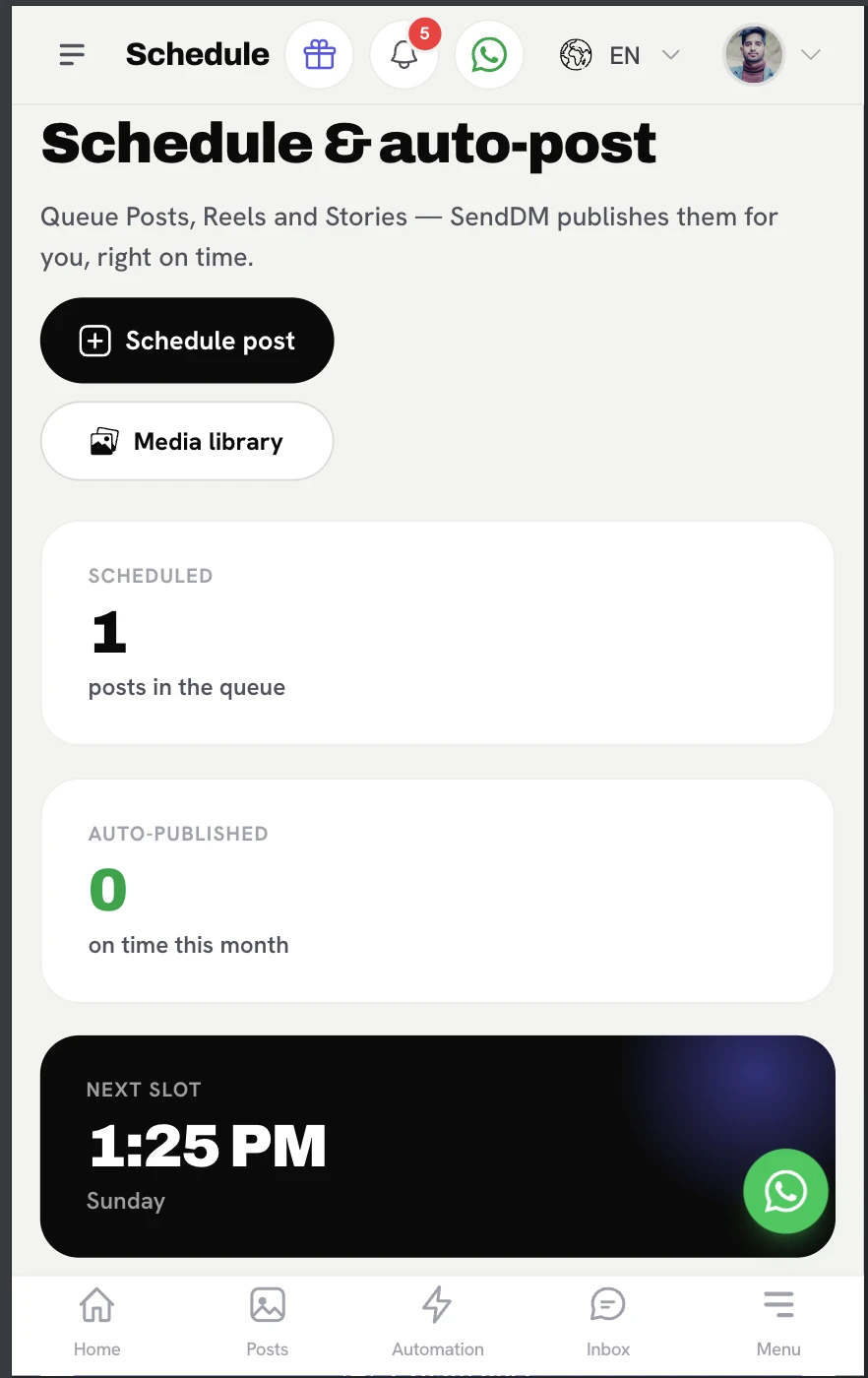
Schedule and auto-post from your phone with the same content calendar, media library, and DM-automation attach as the desktop dashboard. If you want a single app to schedule Instagram posts and run your DM automations from the same place, this is it — compose, schedule, and manage everything on the go.
Schedule Instagram Posts Free: Your Options
Instagram's in-app scheduler and Meta Business Suite are both free — but they're bare-bones: no media library, no editing tools inside the scheduler, no real content calendar, thin analytics, and no way to edit a post once it's scheduled (you delete it and rebuild it).
Send DM's Schedule & Auto-Post also works on the Free plan. The Free tier includes:
- 5 scheduled posts per 30 days — the counter resets 30 days after your first use. All paid plans are unlimited.
- 1 connected Instagram account (Creator plan: 5, Growth: 10, Scale: 20).
- Video uploads up to 50 MB per file (paid plans have no plan-level cap).
- 1 DM automation per scheduled post (attaching multiple automations to one post is paid).
The built-in media editor (image crop and video trim), Reel cover picker, media labels, auto first comment, and Reel settings (share-to-feed toggle and trial reels) are paid features. But the core value — truly auto-publishing scheduled posts with a comment-to-DM automation attached — works on the free plan.
Native Instagram vs Send DM: Side-by-Side
| Feature | Instagram in-app / Meta Business Suite | Send DM |
|---|---|---|
| Schedule feed posts, carousels, Reels | Yes | Yes |
| Schedule Stories | Only Meta Business Suite (strips stickers) | Yes |
| True auto-publish (no tap) | Yes | Yes |
| Content calendar | No / limited | Yes |
| Media library | No | Yes |
| Built-in crop / trim editor | No | Yes (paid) |
| Edit after scheduling | No (delete + recreate) | Yes |
| Advance scheduling window | 75 days | 90 days |
| Facebook Page required | Yes (Meta Business Suite) | No |
| DM automation attached to post | No | Yes |
| Free tier | Yes | Yes (5 posts / 30 days) |
Scheduling Reels and Stories
Reels: If you're wondering how to schedule Reels on Instagram, all three methods handle it. Instagram's in-app scheduler and Meta Business Suite both support Reels, and Send DM schedules Reels that auto-publish with a cover picker, share-to-feed toggle, and trial reels (paid). Instagram's official content publishing API supports auto-publishing Reels for professional accounts, so the Reel goes live on its own with no reminder to tap.
Stories: You cannot schedule Stories in the Instagram app — the in-app scheduler is posts, carousels, and Reels only. Meta Business Suite can schedule Stories but strips interactive stickers. Send DM schedules Stories (image or video) that auto-publish through Instagram's official API.
Frequently Asked Questions
Can you schedule posts on Instagram?
How to schedule posts for Instagram without a Facebook Page?
How do you schedule Instagram posts free?
What's the best app to schedule Instagram posts?
Can you schedule Instagram Stories?
How far in advance can you schedule Instagram posts?
The Bottom Line
Instagram's native tools get you basic scheduling, but you'll quickly hit the walls: no calendar, no media library, no editor, no way to fix a scheduled post, and no DM automation. Send DM gives you all of that in one Instagram post scheduler — schedule posts, Reels, and Stories that truly auto-publish, plan them on a content calendar, and attach a comment-to-DM automation that arms itself the moment your post goes live. It's free to start.
Schedule your first auto-publishing post
Content calendar, true auto-publish, and comment-to-DM automation — free to start.
Start Free →

